Anika Bajaj
· Updated 26 Jun 2025 · 6 min read
On this page
Delivery/ Pickup slot management for e-commerce stores involves organizing and scheduling customer orders within specific time slots. It offers customer convenience, resource optimization, reduced congestion, faster deliveries, improved inventory management, real-time updates, communication, analytics, and customization. It’s a vital aspect of modern e-commerce operations, enhancing the customer experience and improving overall efficiency.
Why do I need this for my online store?
- If you own a hyperlocal store, setting up deliveries and pickups, especially for an F&B or grocery business owner, is essential to the business growth.
- This set of extensions will help you manage and set up slot timings for deliveries and pickups.
- This feature will also allow you to define rules surrounding slot capacities, in which time windows you will be able to set up deliveries accordingly, etc.
- These extensions will also help you set slots and handling charges accordingly as well.
What extensions will I need to manage delivery/ pickup slots?
In Zopping, you will require 3 extensions to be installed for your store.
- **Delivery/ Pick-up Slot Set-up, ** this extension will help you configure slot timings for delivery/ pickup for your working hours on business days.
- **Delivery/ Pick-up Slot Charges, ** this extension will help you configure separate slot charges if needed for every delivery/ pickup slot.
- **Slot Capacity Set-up, ** this extension will help you define a slot capacity for every delivery/ pickup slot planned for the business day.
Prerequisites?
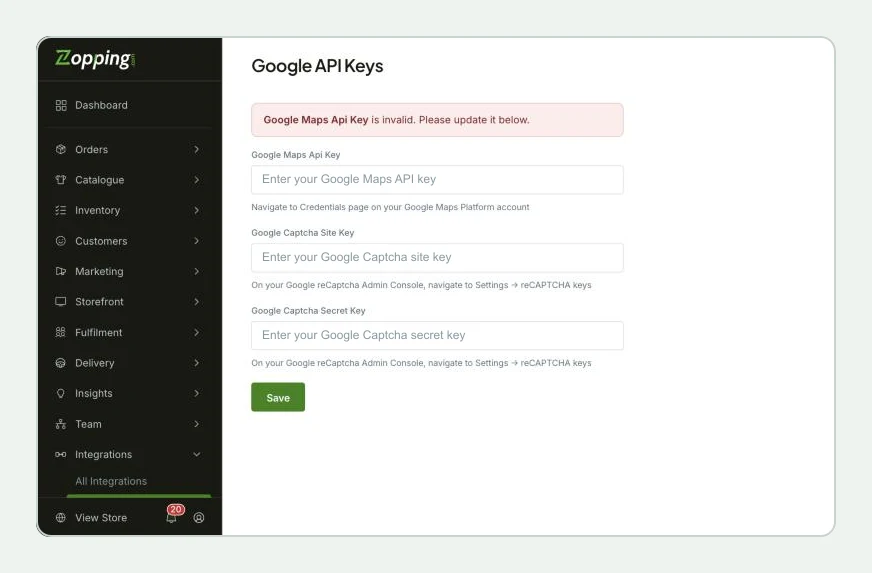
- You need to have a Google API Key. Please refer here to learn more about the same and how to get one.
- Once you have procured one, go to your Dashboard. Navigate to Settings > API Integration. Fill in the Google Maps API Key row and click on Save.
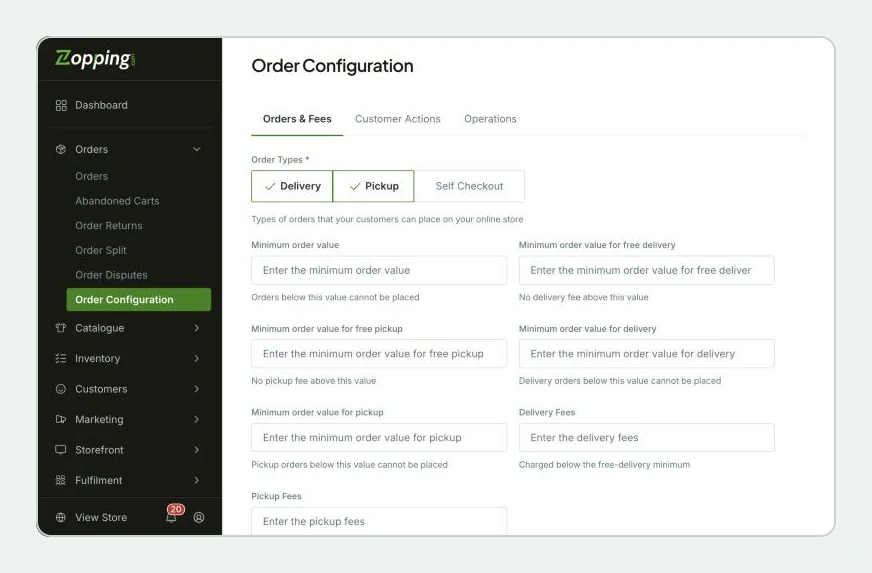
- Navigate to Settings > Order Configuration. Set the Order Type as Delivery or Pickup or both.
How to Install Delivery/ Pickup Slot Setup on Zopping?
- Navigate to the Settings > Extensions > Delivery section. Here you will find the Delivery/ Pick-up Slot Set-up extension window as shown below.
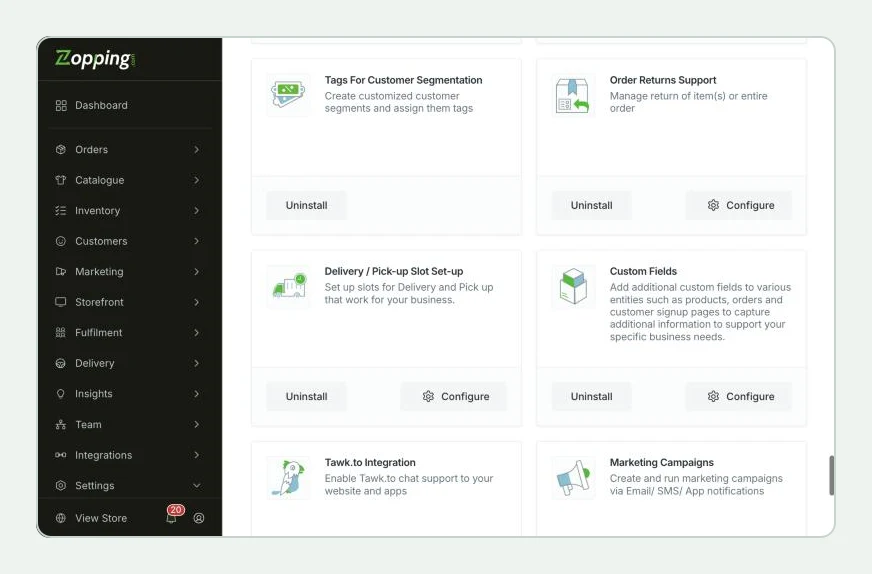
Please note that, after the configurations are set up for the Delivery / Pick-up Slot Set-up extension, only then will you be able to install the Delivery/ Pick-up Slot Charges and the Slot Capacity Set-up extensions.
How to define delivery/ pickup slots for my store(s)?
- Now go to the Extensions > Installed section. You will find the Delivery/ Pick-up Slot Set-up extension in this window. Click on the Configure option.
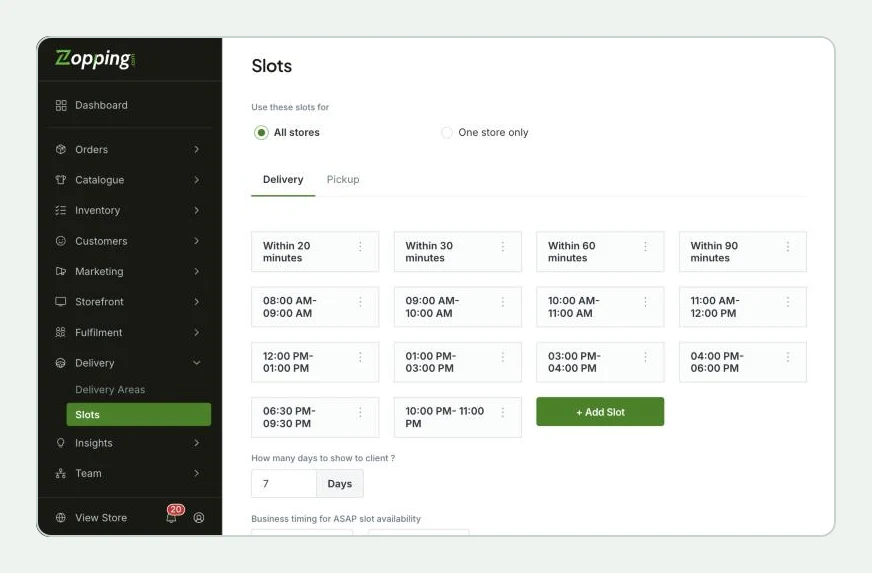
- You can see a page called Slots on your screen. This page has two sections named Delivery and Pickup. Click on the Add Slot button on the right.
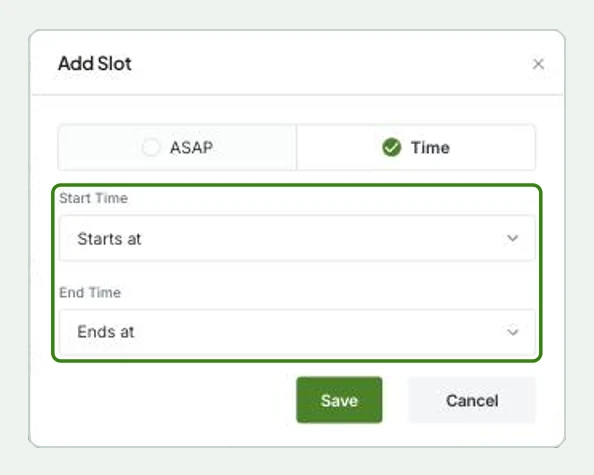
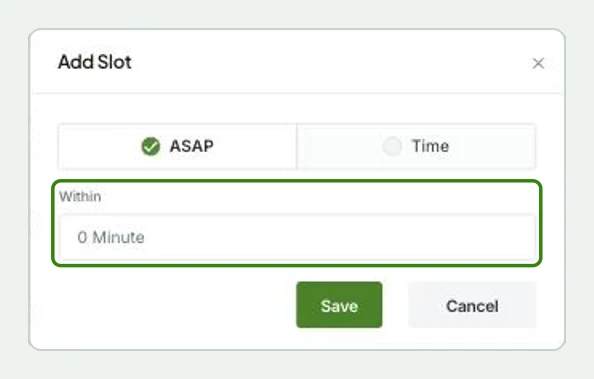
- A small window will appear titled Add Slot. Here, two options will be presented to you, namely Time and ASAP.
- The Time option allows you to select a custom window of time (where you can define a start time and an end time) for deliveries/ pickup requests to be accommodated. Ex: 3:00 PM to 3:30 PM.
- The ASAP (As Soon As Possible) option allows you to define a response time from the time of order placement, for the delivery/ pickup requests to be catered to.
- Click on the Time option, then define a start and end time for the slot. Click on Save.
- Similarly, you can also add a limit to response time (in minutes) for the ASAP slot timings as well.
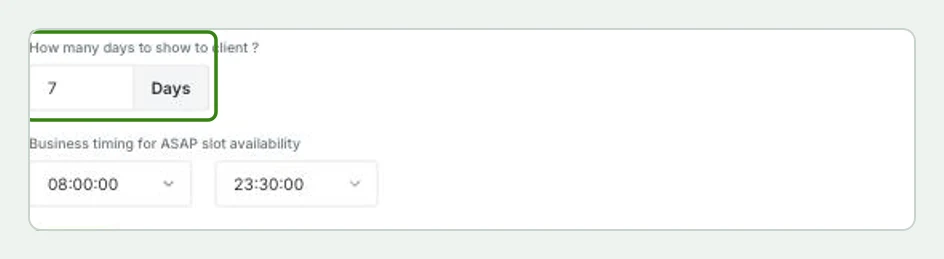
- Once these slots are saved in the system, you can define the number of days the slots should be shown to the customers on your website. You can also choose the business timings in which these delivery slot timings will be open for customers.
 7. You can follow the same steps for the Pickup section as well.
8. After adding all the required information, click on Save.
7. You can follow the same steps for the Pickup section as well.
8. After adding all the required information, click on Save.
How to define Slot charges for delivery/ pickup?
- Now, you can navigate back to the Extensions section and install the Delivery/ Pick-up Slot Charges and the Slot Capacity Set-up extensions.
- Now go to the Extensions > Installed section. You will find the Delivery/ Pick- up Slot Charges extension in this window. Click on the Configure option.
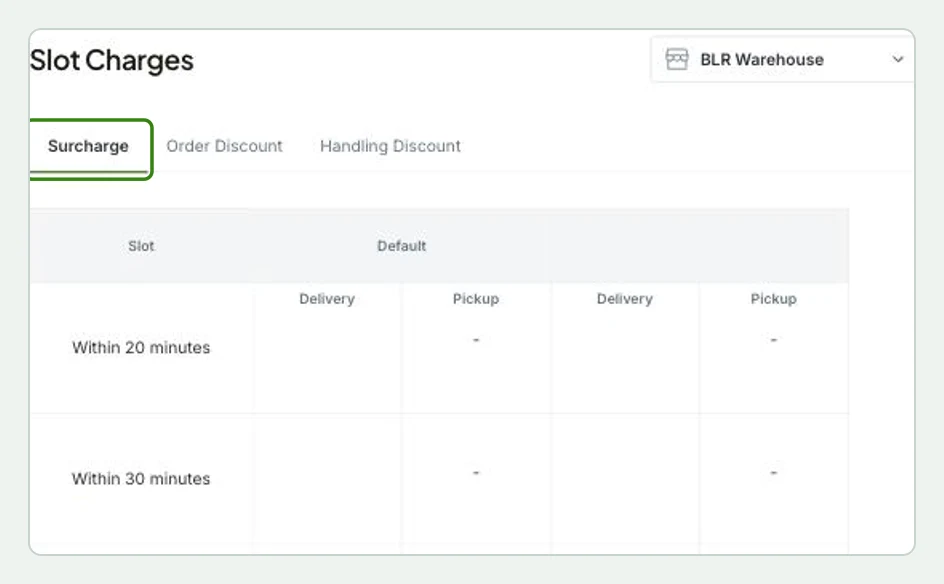
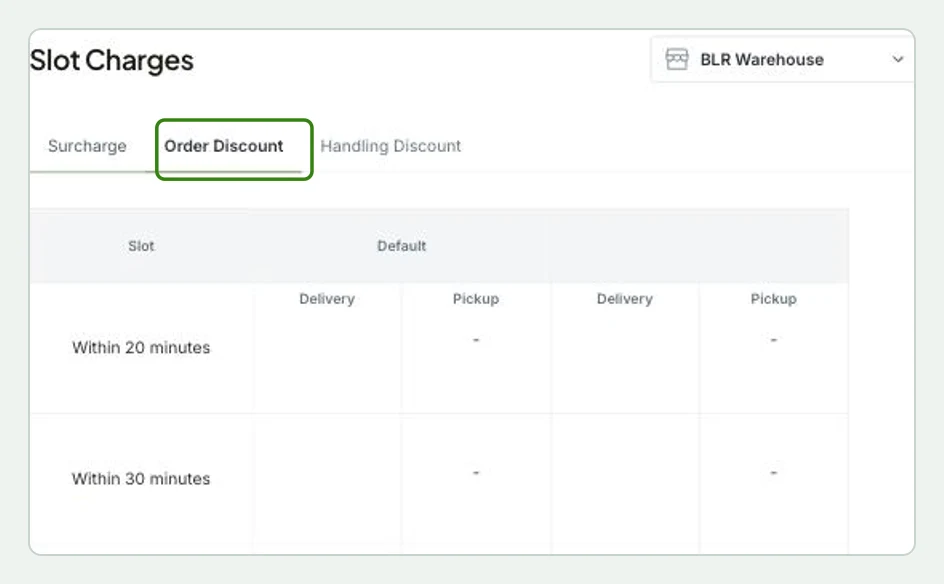
- You can see a page called Slot Charges on your screen. Here, 3 sections will be presented to you, namely Surcharge, Order Discount, and Handling Discount. Please refer below to what these charges are-
- Surcharge- This cost is added when a surplus amount needs to be charged for delivering an order in the given slot. For example, if the vendor is usually busy handling a huge amount of orders, the vendor can add a surcharge to ensure order delivery.
- Order Discount- This cost is deducted from the overall order amount when any order is placed at a given slot. This is usually done to increase order traffic at a particular period.
- Handling Discount- This cost is deducted from the overall order amount to eliminate extra shipping costs.
- In each section, on the left side, you will see the Slots column. Here you will see all the slots you had defined using the Delivery/ Pick-up Slot Set-up extension. For each slot, you can add a default amount charged for either delivery or pickup. Click on the “+” symbol next to the Delivery heading and a row will appear. Enter the relevant amount that can be charged for each delivery and pickup scenario and press Enter/ Return to save the value.
How to define slot capacity for delivery/pickup?
- Now go to the Extensions > Installed section. You will find the Slot Capacity Set-up extension in this window. Click on the Configure option.
- You can see a page called Capacity Planning on your screen. Click on the Add Rule button on the right.
- A window will appear, where you can define certain parameters such as type of order completion, which delivery zone* you wish to define this rule for, select the concerned delivery/ pickup slot, add a cutoff time (cutoff time refers to the window of time before the slot defined, where the vendor will stop accepting delivery requests for the slot chosen by the customer), and define the slot capacity for this particular scenario defined.
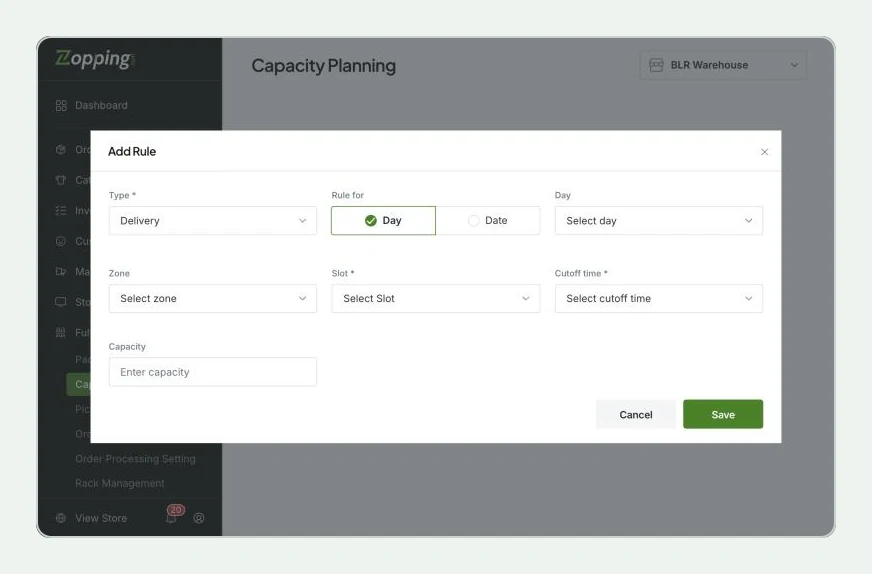
- For example, in the above image, the rule is defined for all deliveries that the vendor will receive on all business days, for the slot of 4 p.m. to 4:30 p.m., with a cutoff time of 30 mins (0.5h), the slot capacity will be 10.
- In a scenario where even after the cutoff time has been initiated, and the slot capacity still isn’t at its maximum capacity, the system will still not accept delivery requests for that particular slot.
- Click on Save to save all these changes in the system.
How will this change affect my website?
- On the checkout page, the user will be able to see some sections, which are used to collect relevant information for order completion.
- Here, 2 sections regarding delivery/ pickup information will also be present, where the user can select what kind of delivery mode they prefer (delivery/ pickup), select the delivery address accordingly, and pick a slot for delivery completion. According to the charges defined, the slot charges column on the right side of the page will get updated.
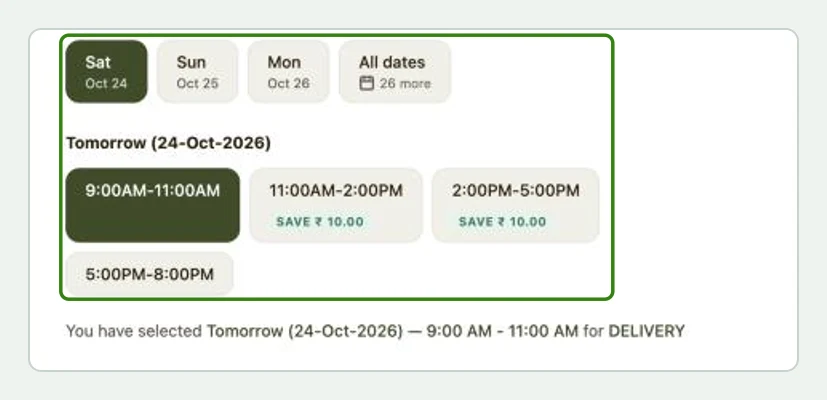
- Once the payment mode is selected, the user can proceed to place the order.
What happens when I uninstall this extension?
- No slots will be allotted for deliveries or pickups anymore.
- No extra charges can be added to accommodate special slot delivery requests.
- No supervision or management can be done on how many delivery requests can be accepted by the business owner.
Share this article