
Anika Bajaj
· Updated 9 Jul 2025 · 3 min read
On this page
What is Product Variant Support?
Product Variant Support enables store owners to add variants (for example: size, colour, weight, etc) to a single product instead of creating multiple products thus helping their customers to choose the desired variant from the same product page instead of navigating between multiple pages.
Why do I need product variants?
Let’s take a real-time example. When you have to upload a product to your online catalog, you have to enter specific details (for eg., brand name, category, description, product image, etc.). Once that is done, your product will be visible on your website for sale. But oftentimes, if you have different variants (weight, colour, or size) of the same product available for sale, by logic, you would have to enter its corresponding product details in the product catalog for individual products. Here is where the Product Variant Support Extension comes in handy. This extension will help you define these variants under the same product with their identifiers. You can define unique prices and taxes, images, and stock for each variant.
Where do I find Product Variants on Zopping?
- Go to Catalogue > Product Variants.
- There is nothing to install: product variants are built into your admin.
How to define the product variants for my products?
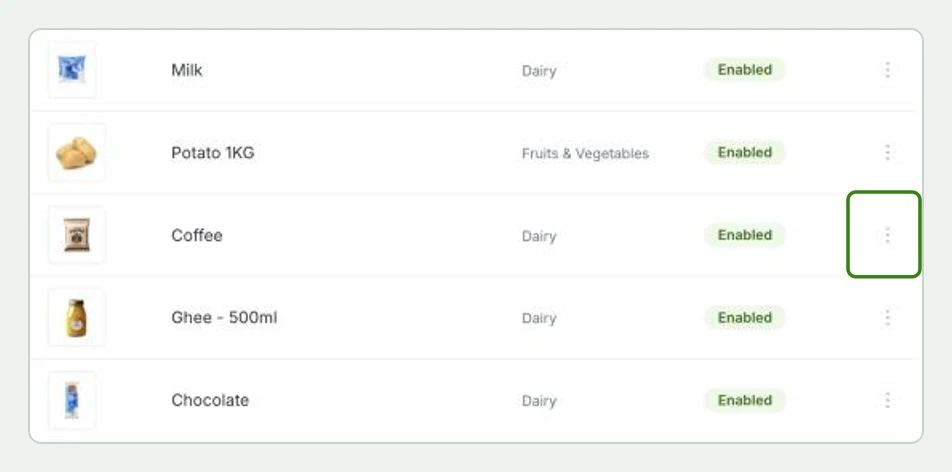
- Navigate back to your product catalog, click on any existing product, and select the Edit option or simply add a new product.
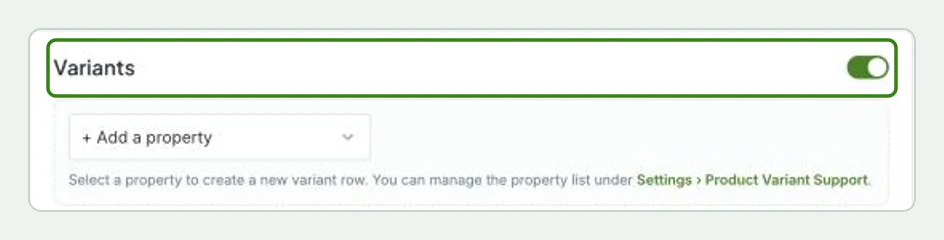
- On the Add/ Edit Product page, scroll down to the Variants section and enable it using the toggle button on the right side of the screen.
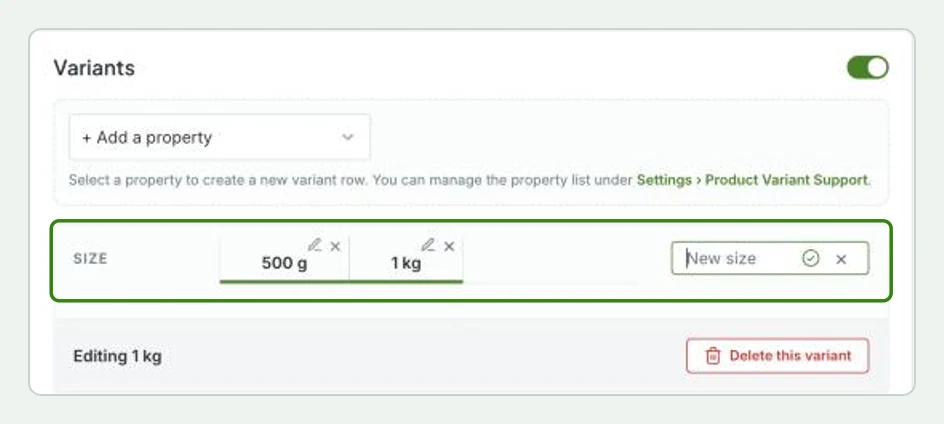
- Once you have added the variant, it will show up as shown below. Here for example purposes, We have added two sizes (500 g and 1 kg). Add all relevant product details (images, price, product ID, etc) for each variant and save.
How will this change reflect on my website?
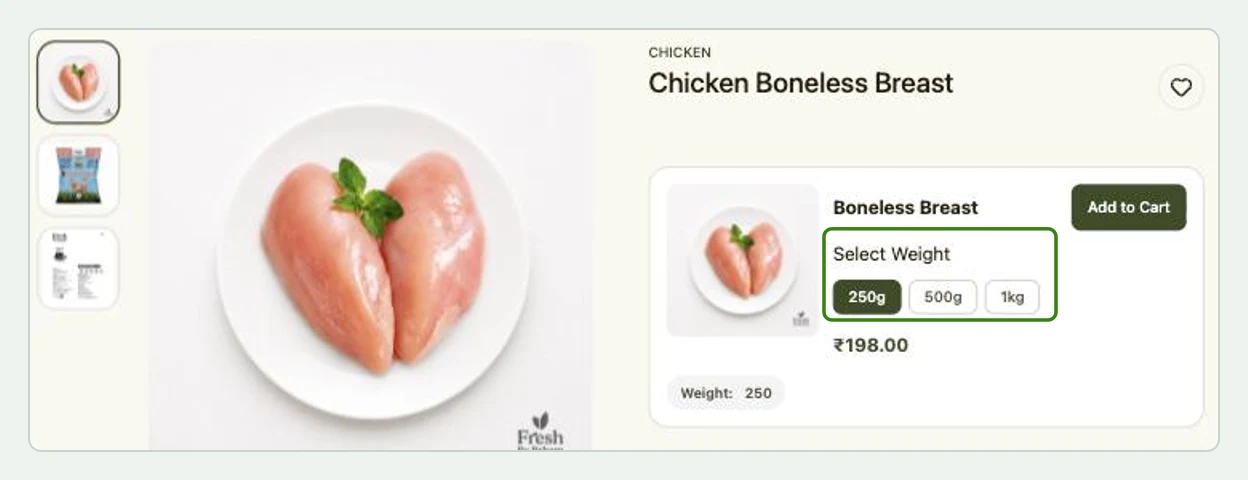
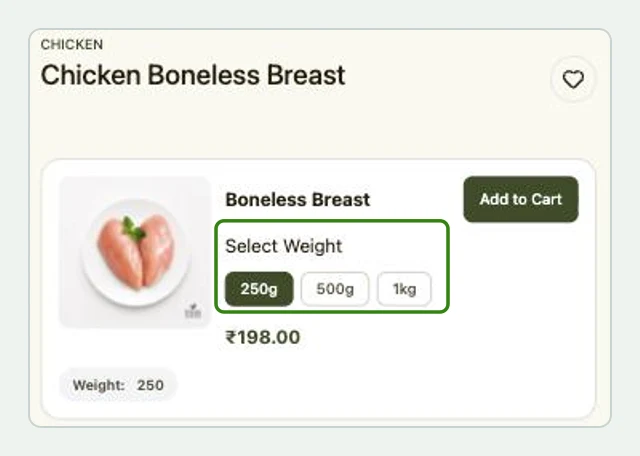
When your customer views the product on your website, they will see the product details like this. Please note that the product shown below now has three weight variants (250g, 500g and 1kg).Similarly, you can add other relevant variants for every product in your catalog. Please note that configuring the variants for a product is completely optional, which means you can continue to add products without necessarily adding variants to them even though the extension is installed.
How to add multiple variants?
In a few scenarios, you might need to add multiple variants to the same product. Example: A T-shirt might have variants by colour and size. In such scenarios, each variant that you add needs to have a unique colour value and size value.
To implement the multi-variant feature, follow the below steps:
- Go to Catalogue > Product Variants.
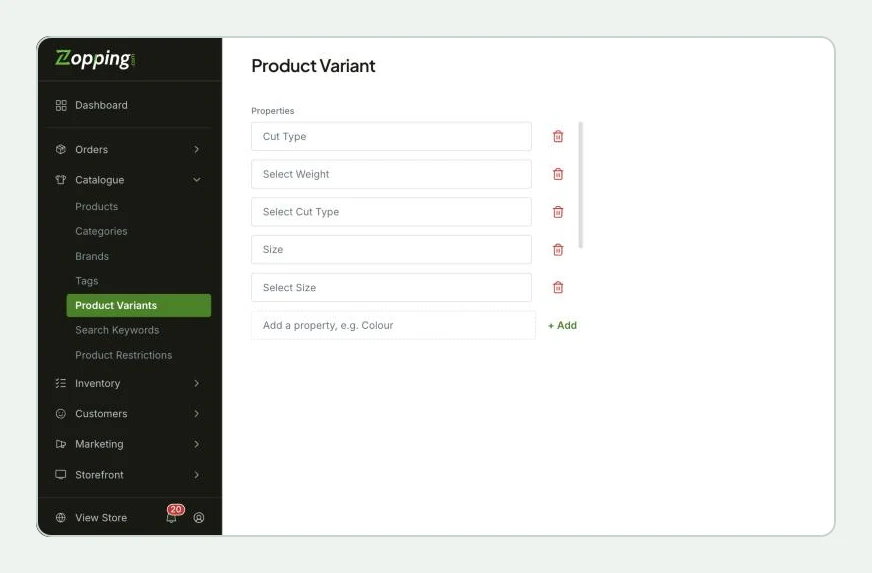
- On the Product Variant page you will see the list of properties. Use + Add to add the different properties that you would like to define for any product in general. In the screengrab shown here, This is a sample store set up for a clothing line. Hence the variants added have been size, color, material, etc.
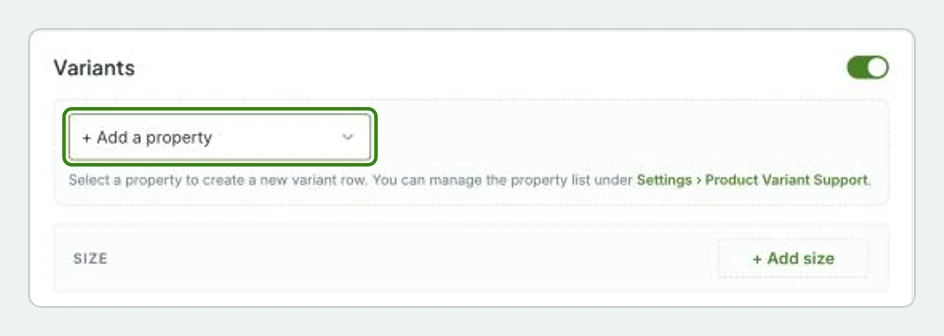
- Now, go to the edit product page as instructed before. When you click on the toggle button, a small window will open. Here you will be asked to add the relevant properties associated with the product you are dealing with. For example, if you are adding a product description for a saree, you would want to mention the color, and material as a variant. This is completely optional.
- Under the Variants section, you will see boxes with the selected properties (in this case, color) mentioned. Fill in with the required information and click on Add Variant. Continue adding relevant product information for each one as shown.
How will this change reflect on my website?
What happens when I uninstall this extension?
- You can no longer add variants to products.
- All existing products with variants will no longer be a part of your product catalog.
Share this article